Missing an important call because your phone didn’t ring is one of the most frustrating smartphone problems. Whether it’s a work call, a family emergency, or an important delivery, a silent phone can cause stress, confusion, and even missed opportunities.
The good news? In most cases, ringtone not working issues are caused by software settings, not hardware damage—and they can be fixed in just a few minutes.
This complete 2026 guide walks you through every proven solution to fix ringtone issues on Android and iPhone, step by step, using simple language and practical checks.
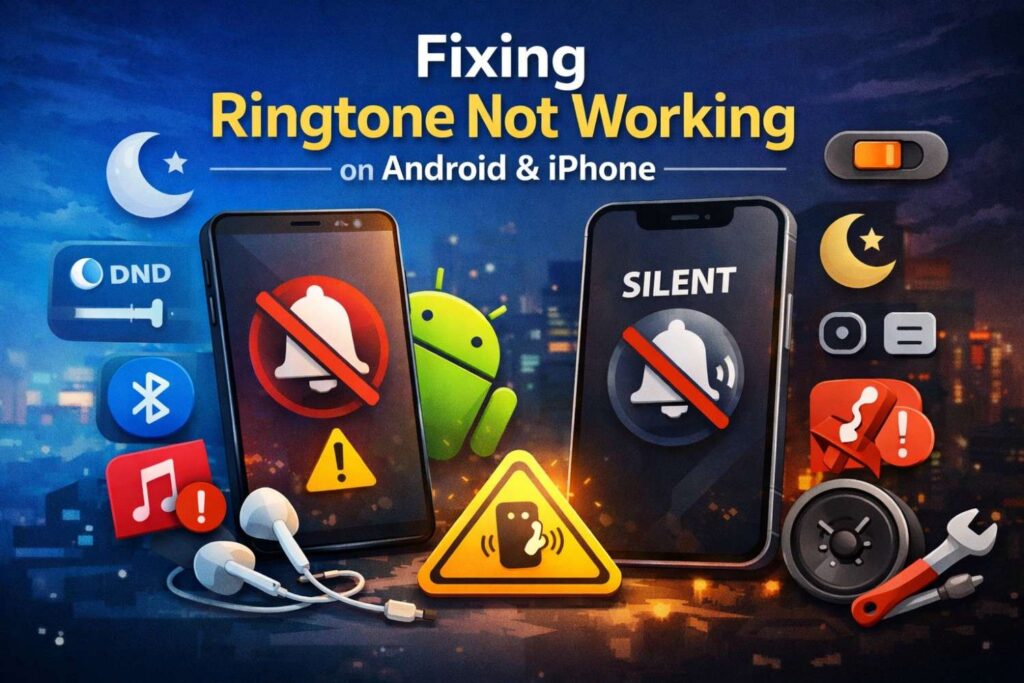
Common Culprits Behind Ringtone Not Working
Before diving into fixes, it’s helpful to understand why phones stop ringing. The most common reasons include:
- Silent or Vibrate Mode enabled
- Do Not Disturb (DND) or Focus Mode active
- Bluetooth connected to headphones or speakers
- Corrupted or incompatible ringtone file
- System glitches after updates
- Low or muted ringtone volume
- Physical speaker damage (rare, but possible)
Most of these can be resolved without technical expertise.
Section 1: Fixing Ringtone Issues on Android
Android devices offer deep customization—but that also means more places where sound settings can go wrong. Follow these steps in order.
Step 1: Check Ringtone Volume Settings
This may sound obvious, but Android separates media volume, notification volume, and ringtone volume.
How to check:
- Go to Settings
- Tap Sound & Vibration
- Select Volume
- Increase the Ringtone volume slider to maximum
🔹 Tip: Pressing the volume buttons often adjusts media volume, not ringtone volume.
Step 2: Disable Do Not Disturb (DND) Mode
Do Not Disturb is one of the top reasons for phone not ringing on incoming calls.
To turn off DND:
- Open Settings
- Go to Sound & Vibration
- Tap Do Not Disturb
- Turn it OFF
Also check:
- Schedules (DND may turn on automatically at night)
- Exceptions (calls may be blocked except for favorites)
Step 3: Check Silent or Vibrate Mode
Some Android phones have quick toggles that silence ringtones.
Check via Quick Settings:
- Swipe down from the top
- Ensure Sound mode is enabled (not Silent or Vibrate)

Step 4: Check Bluetooth Interference
Your phone might actually be ringing—but through a connected Bluetooth device.
Fix this by:
- Opening Settings
- Going to Bluetooth
- Turning Bluetooth OFF
- Making a test call
If your phone rings normally afterward, the issue was Bluetooth audio routing.
Step 5: Verify the Selected Ringtone File
If you’re using a custom ringtone, the file itself may be corrupted or unsupported.
What to check:
- File format should be MP3 or WAV
- File size should be reasonable (not excessively large)
- The ringtone should play normally in a music player
If the file doesn’t play properly, Android may silently fail to use it.
Step 6: Reassign the Ringtone
Sometimes Android loses track of custom audio files.
Fix:
- Go to Settings → Sound & Vibration
- Tap Phone Ringtone
- Select a default system ringtone
- Save and test
If the default ringtone works, the problem is your custom file.
Section 2: Fixing Ringtone Issues on iPhone (iOS)
iPhones are simpler—but small switches and smart features often cause confusion.
Step 1: Check the Physical Mute Switch
The mute switch on the side of the iPhone is the #1 cause of iPhone silent issues.
- If you see orange, your iPhone is muted
- Flip the switch so no orange is visible
Test by locking the phone and making a call.
Step 2: Increase Ringtone Volume Properly
On iPhone, volume buttons don’t always control ringtone volume.
Correct path:
- Open Settings
- Tap Sounds & Haptics
- Increase Ringtone and Alerts volume
- Enable Change with Buttons (optional)
Step 3: Disable Focus Mode / Do Not Disturb
Focus Mode in iOS can block calls silently.
To turn it off:
- Open Settings
- Tap Focus
- Select Do Not Disturb
- Turn it OFF
Also check:
- Sleep Focus
- Work Focus
- Scheduled Focus modes
Step 4: Turn Off Attention Aware Features
This feature lowers ringtone volume when you look at the phone.
Disable it:
- Go to Settings
- Tap Face ID & Passcode
- Scroll down to Attention Aware Features
- Turn it OFF
Many users report this fixes low ringtone volume issues instantly.
Step 5: Check Bluetooth Connections
Just like Android, iPhones may route sound to Bluetooth devices.
Fix:
- Open Control Center
- Turn Bluetooth OFF
- Test with an incoming call
Step 6: Reset Ringtone Selection
If you’re using a custom tone:
- Go to Settings → Sounds & Haptics
- Tap Ringtone
- Select a default Apple ringtone
- Test
If it works, your custom tone may be incompatible or damaged.
Universal Fix: Check the Ringtone Audio File
Sometimes the ringtone file itself is the real problem, regardless of phone type.
Common audio issues include:
- Very low recording volume
- Clipping or distortion
- Incorrect encoding
- Incomplete downloads
To fix this:
- Re-edit the file
- Trim silence at the beginning
- Boost volume safely
- Re-save in MP3 format
Using a reliable MP3 cutter or volume booster (such as tools available on Ringtonehub9.com) can help ensure the ringtone is:
- Loud enough
- Properly formatted
- Fully compatible with Android and iOS
Once fixed, reassign the ringtone and test again.
Advanced Fixes That Often Work
If basic steps didn’t solve the issue, try these advanced but safe solutions.
Restart Your Phone
A simple reboot clears temporary system glitches.
- Power off the phone
- Wait 30 seconds
- Turn it back on
- Test incoming calls
Check for Software Updates
Bugs affecting sound are often fixed via updates.
Android:
- Settings → Software Update
iPhone:
- Settings → General → Software Update
Install updates and restart.
Reset Sound Settings (Advanced Users)
Some Android phones allow resetting sound settings without wiping data.
- Settings → System → Reset Options
- Select Reset App Preferences or Reset Sound Settings
When It’s a Hardware Issue
If none of the software fixes work, the problem may be physical.
How to Identify Speaker Damage
Try these tests:
- Play music at full volume
- Watch a YouTube video
- Play alarm sounds
If:
- Media sound is also silent
- Sound is crackling or distorted
- Volume doesn’t increase
Then the speaker may be damaged.
Common causes:
- Water exposure
- Dust blockage
- Physical impact
In this case, professional repair is recommended.
Final Thoughts
A ringtone not working problem can feel serious—but in over 90% of cases, it’s caused by settings like:
- Silent mode
- Do Not Disturb
- Bluetooth interference
- Corrupted ringtone files
By following this step-by-step guide, you can confidently fix:
- Ringtone Not Working Fix
- Phone Not Ringing on Incoming Calls
- Android Sound Problems
- iPhone Silent Issue
- Fix Muted Ringtone
Take your time, test after each step, and your phone should be ringing loudly and reliably again in no time.